A well-optimized WiFi network is essential for making the most out of your Internet connection. WiFi analyzer apps for Android are convenient because you can use them from anywhere with nothing but an Android smartphone or tablet. They are also usually free and very easy to use. We have selected six WiFi analyzer apps for Android to save you the time that you might otherwise waste on apps that are not up to the same level of quality.

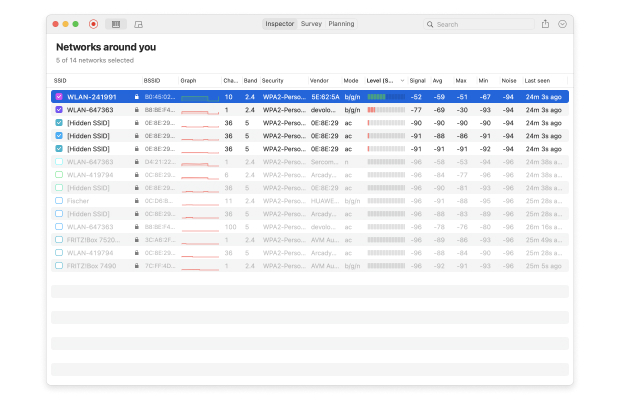
Every detail about surrounding Wi-Fi networks is meticulously collected and presented as an interactive table: channel, security, signal level performance, etc. And here is the wonderful news: NetSpot is a completely free WiFi app for Android!
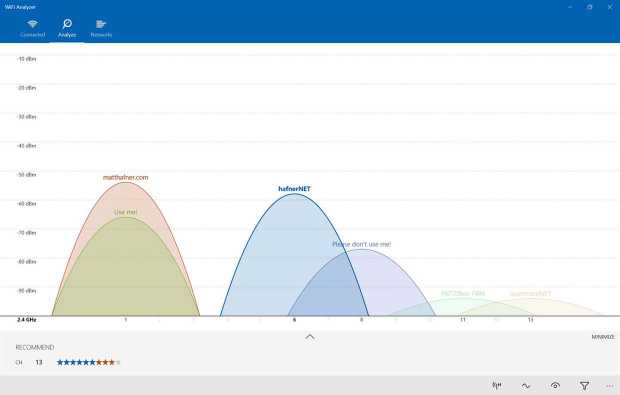
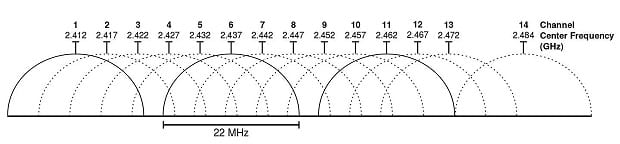
The app really does only one thing, and it does it extremely well: it displays wireless networks on a graph, showing which channel each network runs on. As soon as you turn on Wifi Analyzer, you spot the dreaded channel overlap and see which channel is used the least. Wifi Analyzer is free, supported by ads.

The app is free and doesn’t display ads, which is rather surprising considering how much it does. Definitely a must-have for any in-depth network analysis.

When you focus on a single network, Network Signal Info displays the network’s Wi-Fi-Name (SSID), BSSID, MAC address, maximum Wi-Fi speed, IP address, external IP address, net capability, net channel, subnet mask, Gateway IP address, DHCP server address, DNS1 and DNS2 address, among other things. There’s also a paid version of Network Signal Info, which has no ads and adds several useful features.

The Channels tab displays the current WiFi channel traffic distribution, the Strength chart is useful for identifying the areas of weak signal, and, finally, the Speed chart displays information about transmitted and received data.
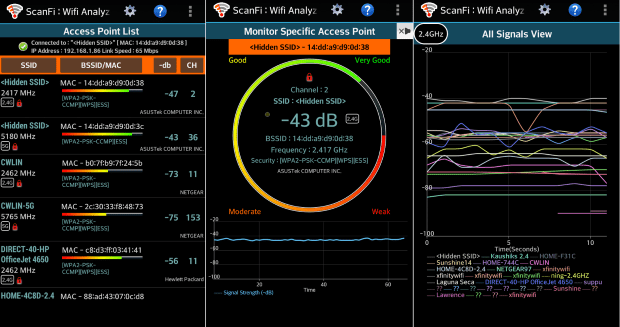
ScanFi supports both 2.4 Ghz and 5 GHz scanning, and the app doesn’t cost anything to download.
A good WiFi analyzer app for Android should also be intuitive and easy to use. It takes a lot of skill to fit all the essential information into a display that’s just around five inches in diameter. It’s advisable for developers to follow Google’s design guidelines to create an app with a familiar look and feel.
Last but not least, it’s paramount that the WiFi analyzer Android app you ultimately go with supports all the latest WiFi standards and technologies. Wireless networks are constantly evolving, becoming faster and offering better security. Use only those WiFi analyzer apps that have managed to keep up with the industry.
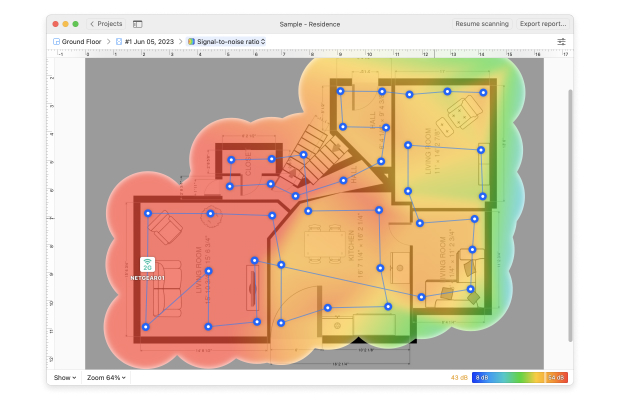
To analyze WiFi coverage, you can either download a professional app for wireless site surveys, such as NetSpot, or you can go with a WiFi app for Android that has some of the same features as NetSpot and other full-fledged WiFi analyzer apps.
The main advantage of NetSpot is its ability to generate a comprehensive heatmap of your network with just a few clicks, clearly highlighting all the areas of weak signal strength. Apart from generating signal strength heatmaps, NetSpot can also instantly detect all nearby wireless networks and display all the essential information about them.
But if your needs are relatively modest, some of the best Android WiFi analyzer apps can get the job done almost as well as NetSpot. The main advantage of WiFi apps for Android is their mobility. It’s much easier to carry around a lightweight smartphone than a much heavier laptop, especially if you need to analyze multiple wireless networks, taking several measurements each time.
1. NetSpot for Android
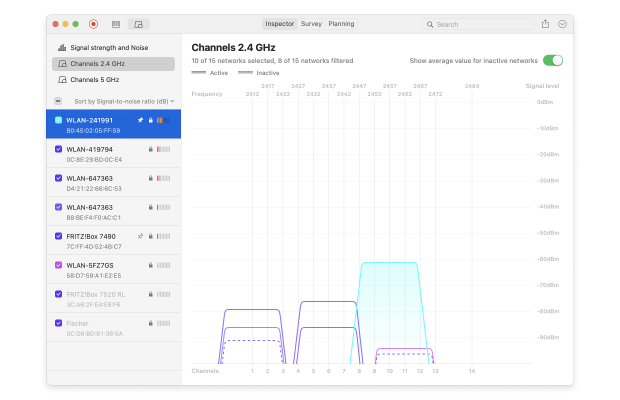
From now on to analyze a WiFi network and to build it up to perfection you will only need your Android phone or tablet with NetSpot app installed on it. Our best Android WiFi analyzer has its own unique interface that is extremely easy to operate. You can discover WiFi networks around you and see them on a graph, showing which channel each network runs on.Every detail about surrounding Wi-Fi networks is meticulously collected and presented as an interactive table: channel, security, signal level performance, etc. And here is the wonderful news: NetSpot is a completely free WiFi app for Android!
2. Wifi Analyzer
Wifi Analyzer is one of the original WiFi analyzer apps for Android, and it’s still one of the best options out there. If there’s one word that best characterizes this app its simplicity. Wifi Analyzer won’t overwhelm you with an abundance of options and features, and that’s a good thing.The app really does only one thing, and it does it extremely well: it displays wireless networks on a graph, showing which channel each network runs on. As soon as you turn on Wifi Analyzer, you spot the dreaded channel overlap and see which channel is used the least. Wifi Analyzer is free, supported by ads.
3. OpenSignal
OpenSignal is a powerful WiFi analyzer app with a plethora of features intended both for WiFi and cellular monitoring. The app can display the directions to the nearest cell tower, perform speed and latency tests, display coverage and connection quality on a map, provide you with detailed wireless network information, and much more.The app is free and doesn’t display ads, which is rather surprising considering how much it does. Definitely a must-have for any in-depth network analysis.
4. Network Signal Info
Network Signal Info is a great alternative to Wifi Analyzer for people who to see as much information about the currently used network as possible. Among the main features of Network Signal Info is accurate signal strength indication with useful visualization.When you focus on a single network, Network Signal Info displays the network’s Wi-Fi-Name (SSID), BSSID, MAC address, maximum Wi-Fi speed, IP address, external IP address, net capability, net channel, subnet mask, Gateway IP address, DHCP server address, DNS1 and DNS2 address, among other things. There’s also a paid version of Network Signal Info, which has no ads and adds several useful features.
5. WiFi Monitor
WiFi Monitor from Alexander Kozyukov is a capable WiFi analyzer for Android with a user interface divided into several tabs. The Connection tab displays information about the current WiFi network, the Networks tab allows comparison of all available WiFi networks by various parameters.The Channels tab displays the current WiFi channel traffic distribution, the Strength chart is useful for identifying the areas of weak signal, and, finally, the Speed chart displays information about transmitted and received data.
6. ScanFi
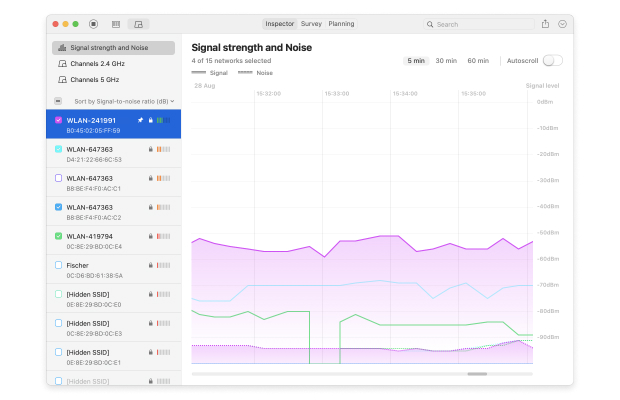
With ScanFi, you can turn any compatible Android device into a powerful wireless network analyzer with an abundance of advanced features that make WiFi analysis effortless. The app allows you to retrieve information about nearby wireless networks, visualize their activity on graphs, and see historical information about their strength, speed, and so on.ScanFi supports both 2.4 Ghz and 5 GHz scanning, and the app doesn’t cost anything to download.
What Kind of Features Should a WiFi Analyzer Android App Have?
A good WiFi analyzer Android app should be as bug-free as possible. The only thing worse than using a mobile app riddled with intrusive ads is using an app riddled with bugs. Some bugs cause crashes and critical errors, while other bugs compromise the accuracy of the measurements. But regardless of what problems they cause, the presence of bugs clearly demonstrates a lack of commitment from the developer.A good WiFi analyzer app for Android should also be intuitive and easy to use. It takes a lot of skill to fit all the essential information into a display that’s just around five inches in diameter. It’s advisable for developers to follow Google’s design guidelines to create an app with a familiar look and feel.
Last but not least, it’s paramount that the WiFi analyzer Android app you ultimately go with supports all the latest WiFi standards and technologies. Wireless networks are constantly evolving, becoming faster and offering better security. Use only those WiFi analyzer apps that have managed to keep up with the industry.
Why Do You Need to Analyze WiFi Coverage?
WiFi coverage is hardly ever uniform in terms of its reach and strength. Depending on where you place your router, you might be able to cover your entire house with strong WiFi signal, or you might struggle to cover a single room. Unless you have a way how to analyze WiFi coverage, it’s easy to spend many hours guessing, struggling to find the perfect place for your router.To analyze WiFi coverage, you can either download a professional app for wireless site surveys, such as NetSpot, or you can go with a WiFi app for Android that has some of the same features as NetSpot and other full-fledged WiFi analyzer apps.
The main advantage of NetSpot is its ability to generate a comprehensive heatmap of your network with just a few clicks, clearly highlighting all the areas of weak signal strength. Apart from generating signal strength heatmaps, NetSpot can also instantly detect all nearby wireless networks and display all the essential information about them.
But if your needs are relatively modest, some of the best Android WiFi analyzer apps can get the job done almost as well as NetSpot. The main advantage of WiFi apps for Android is their mobility. It’s much easier to carry around a lightweight smartphone than a much heavier laptop, especially if you need to analyze multiple wireless networks, taking several measurements each time.